



1Your icon
Drop your logo here
A square PNG or SVG, 512 px or larger, gives the sharpest icons.
Or drop files anywhere on the page · paste with Ctrl+V
2Preview
3HTML for your <head>
How it works
Three quick steps. No account, no waiting in a queue, no watermark.
- 1Add a logo — or type
Upload a square logo (SVG or PNG), or make an icon from one to three letters or an emoji.
- 2Style it
Choose the shape, background and padding, and check the live browser-tab and home-screen previews.
- 3Download and install
Get every file in one ZIP. Upload them to your site’s root folder and paste the HTML into your <head>.
Private by design
Everything happens inside your browser tab. Your files aren’t uploaded, stored or seen by anyone — not even us.
- No uploads
- No account
- No watermark
- Works offline
Questions, answered
What’s included in the download?
favicon.ico (16, 32 and 48 px), PNG favicons, a 180 px Apple touch icon, 192 and 512 px Android icons, site.webmanifest and a ready-to-paste HTML snippet.
Is my logo uploaded?
No. Icons are drawn with your browser’s canvas — nothing leaves your device.
Why does the Apple icon always have a background?
iOS fills transparent areas with black, so the Apple touch icon always gets a solid background (white if you chose transparent).
My new favicon isn’t showing up
Browsers cache favicons aggressively. Hard-refresh the page, or add a version to the link such as /favicon.ico?v=2.
More free tools
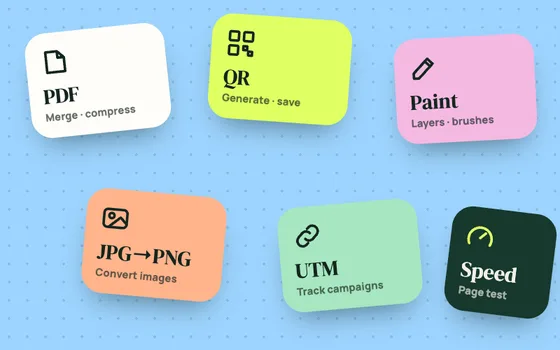
Handy utilities for documents, images and marketing — all private, all in your browser.